Increase your internet speed (bandwidth) by 20%
 Prefer video directions instead? Scroll down…
Windows holds back a large portion of your internet bandwidth as part of it's network settings. But if you're not on a corporate network, if this is your home computer, free that up for greater bandwidth. Get that extra speed by making a very quick, simple and easy change in the Windows Group Policy editor (works just like looking through your files and folders) as follows:
- Click START, then click RUN.
- Type "gpedit.msc" without the quotes, then click OK.
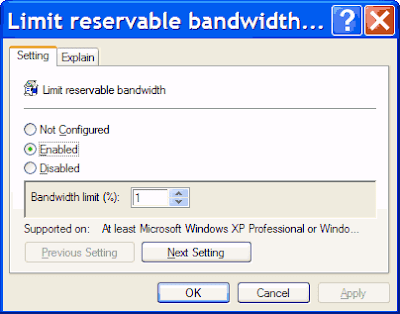
- Browse to the highlighted area shown above -- the folder you want is Computer Configuration/ Administrative Templates/ Network/ QoS Packet Scheduler in the left-hand pane (shown above) then double-click "Limit reservable bandwith" in the right-hand pane. The dialog box shown below will pop up.
- Click the dot (radio button) for Enabled as shown below, and in Bandwidth Limit, type or click up or down until a number between 0 and 10 is shown.
- Click Apply, and click your way out of the open dialog boxes: you're done!
The lower the number you enter in Bandwidth Limit (where I have entered a "1" in the image below), the faster your internet connection will be. However, "5" is probably low enough, though you can play with this number:
 However, realize if the if the network card has a specific limit set on it in registry, this would have no impact on it.Speed up Firefox
If you have a high-speed (Cable, DSL, etc.) connection this change will give you a very noticeable speed increase for larger web pages. Inside the address bar on Firefox (where web page addresses/URLs go) type this and press enter:
about:config
and then find:
network.http.pipelining
network.http.proxy.pipelining
and set them both to "true". This adjusts the pipelining settings. For more
cool settings available in about: config, go here.)
Then find
network.http.pipelining.maxrequests
and set it to 8, as suggested by
http://kb.mozillazine.org/Network.http.pipelining.maxrequests (though you can play with this number).
Finally, right-click anywhere (on any setting) and a menu will pop out: select 'new' and then 'integer'. Copy this (without the quotes): "nglayout.initialpaint.delay" and paste it in as the name, and then set the value to "0" (zero). This removes the render delay. You should experience a BIG speed increase!
More speed tips
Read more!